Channels
How to Create a Channel
- Click the “+” icon in the category where you want to create a channel.
- There are 3 types of channels, each serving a different purpose:
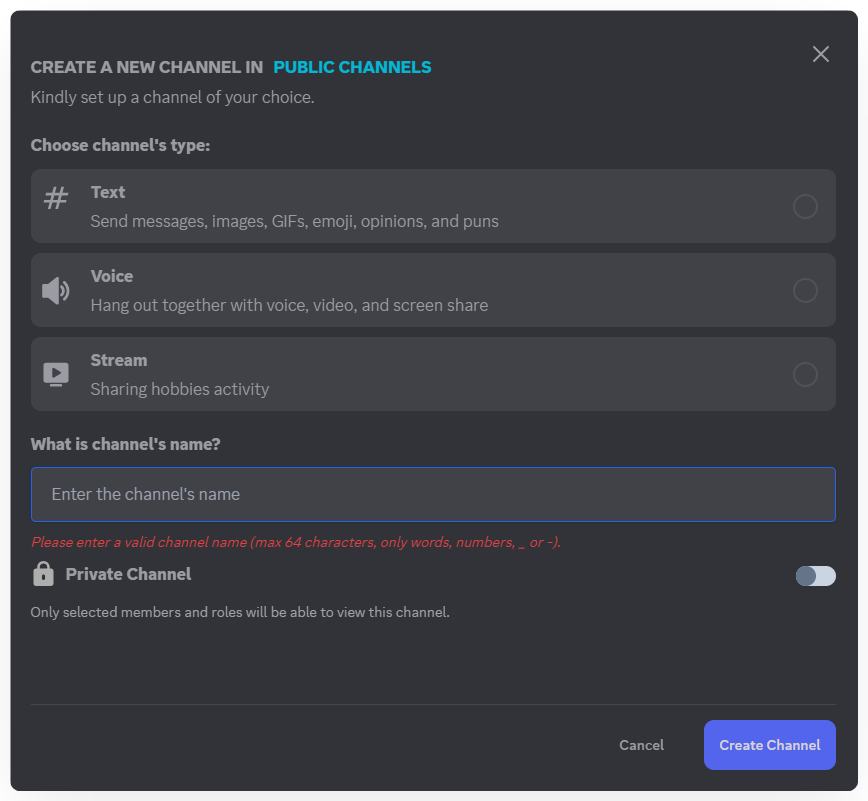
- Text Channel – The main communication space of the Clan. You can send text messages, images, videos, and store important information.
- Voice Channel – For voice chatting, screen sharing, or video calls. All free, with no limits on time or resolution!
- Live Channel – Where the Clan owner can host broadcasts, talk shows, or regular podcasts.
When creating a channel, you can enable Private Mode so only selected members can see it.
Note
Each Clan can have a maximum of 500 channels at the same time.
Channel Settings
Click the gear icon next to the channel name to configure settings.

Overview
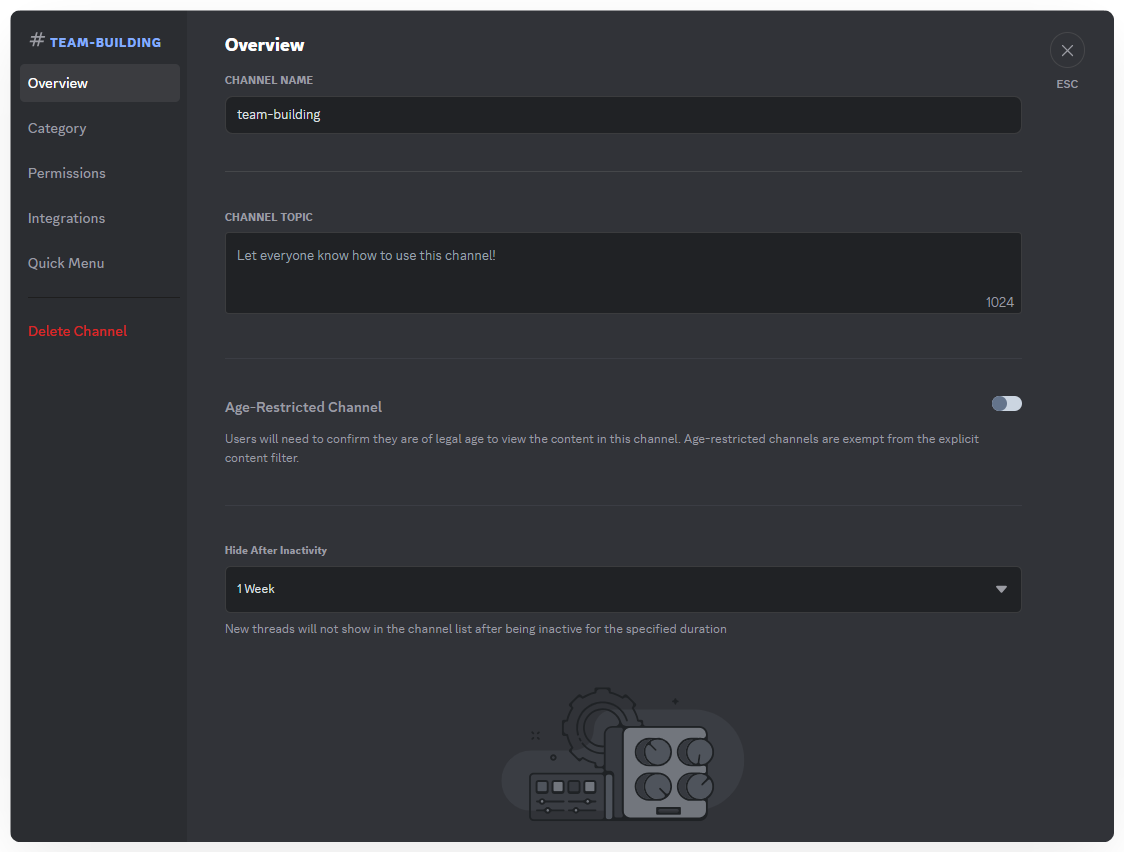
- Channel Name – Change the name of the channel.
- Channel Description – Explain how members should use this channel (up to 1024 characters).
- Age-Restricted Channel – Toggle NSFW warnings. Channels with age restriction are exempt from explicit content filters.
- Auto-Hide After Inactivity – Channels will automatically hide in the Clan navigation after a set period of inactivity.
Category
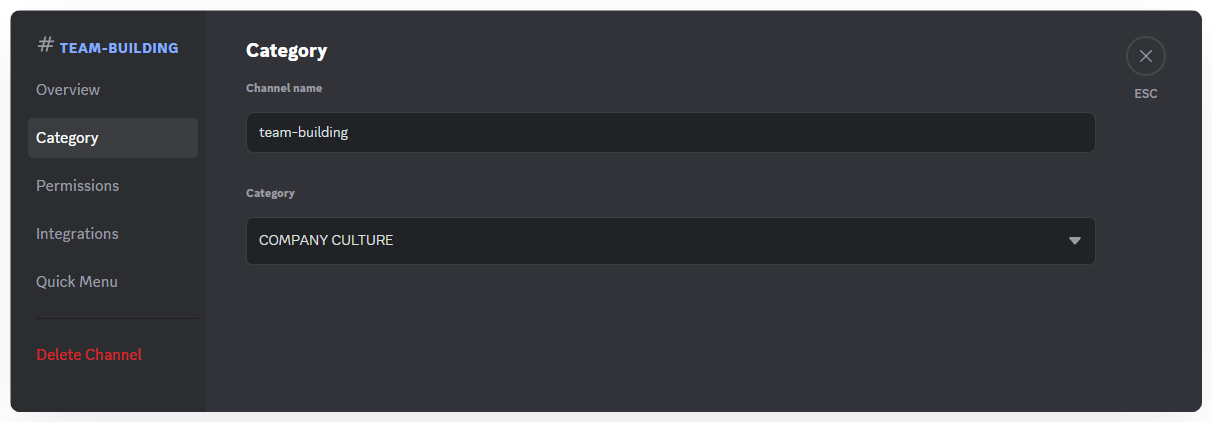
- Change the category the channel belongs to. You can also drag and drop the channel name in the Clan navigation to move it to another category.
Permissions
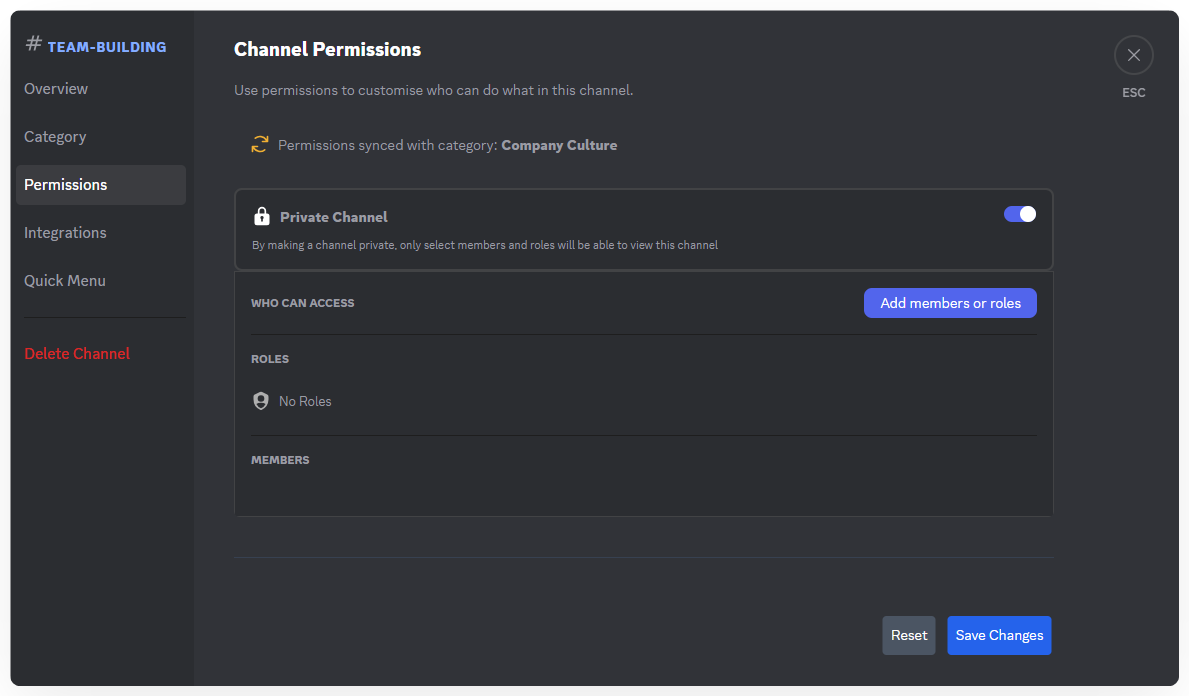
- Manage who can view the channel.
- By default, channel permissions sync with the category it belongs to.
- Enable Private Channel to customize permissions specifically for this channel.
Note
Permissions are available for Text Channels and Voice Channels only. Stream Channels are always public for all Clan members.
Integrations
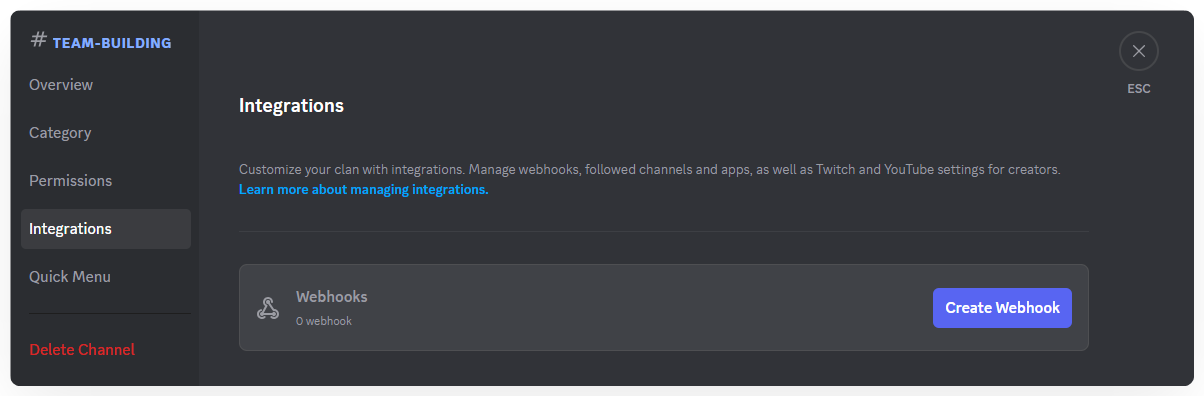
- Create and configure a Webhook for the channel.
- Refer to Developer Doc for more details on Mezon Webhooks & SDK.
Quick Menu

- Add Quick Messages - Save frequently used phrases so you don’t have to type them repeatedly.
- Example: Instead of typing “Could anyone send me a coffee?” every day, you can save it as a quick message and just type /givemecoffee to send it.
- Add Quick Menu – Create commands to interact with bots quickly. After creating a quick menu, right-click a message to select and request the bot to perform the corresponding action. See Developer Docs for setup instructions.
Note
Quick Menu is available only in Text Channels.
Delete Channel
- If a channel is no longer in use or you want to stop it, you can permanently delete it.
Note