Enable Community
Activate and grow your Clan into a public community.
When you enable Community Mode, your Clan is no longer just a private group—it becomes a more accessible and open community.
- Your Clan will have a custom fixed link (e.g., mezon.ai/clan/clan-name), easy to remember and share.
- Your Clan will be visible on the Discover page, where Mezon users can search, view information, and join.
- You’ll gain community management tools to attract new members, organize events, and develop your Clan into a professional open space.
If you want your Clan to become a “branded” community, widely recognized and able to attract new members easily, enable Community Mode today.
How to Enable and Set Up a Mezon Community
1
Enable Community
- In the left menu, find and select Enable Community.
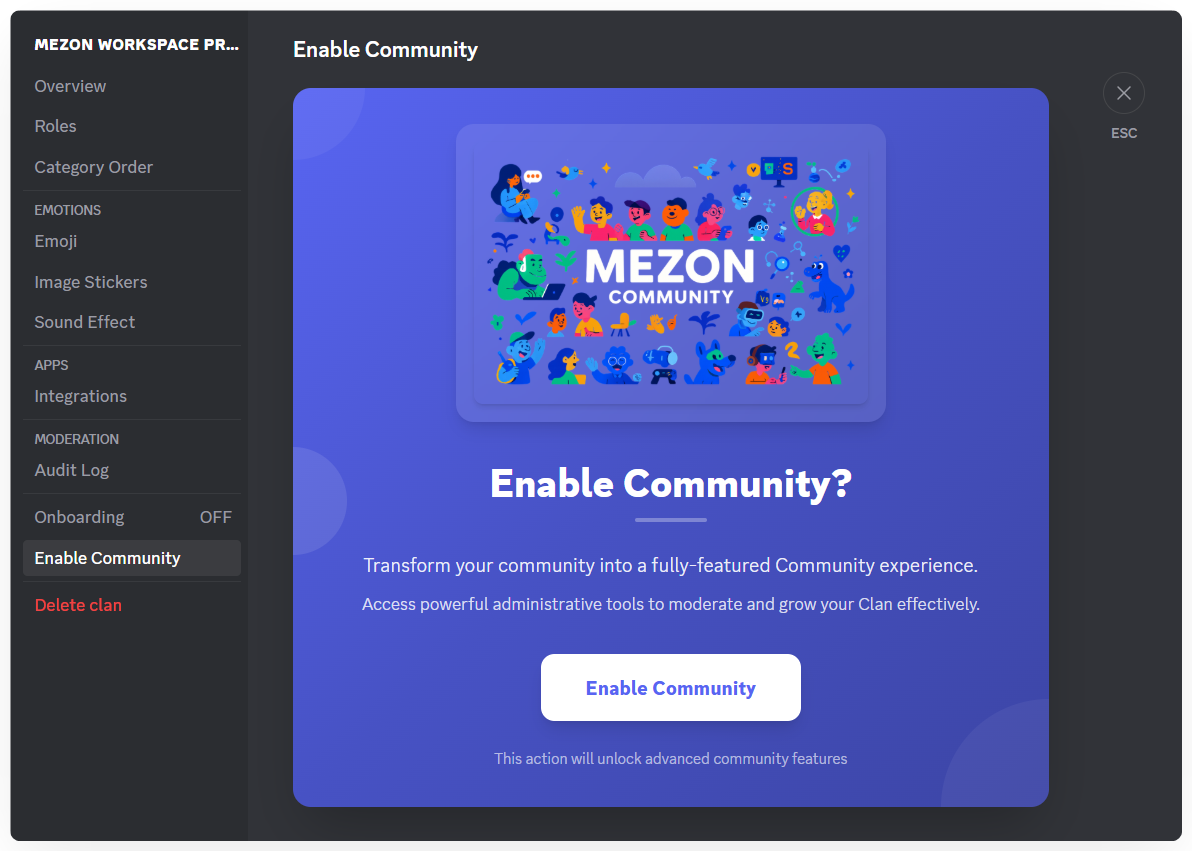
- Read the introduction, then click Enable Community at the bottom of the screen to confirm.
2
Customize Community Information
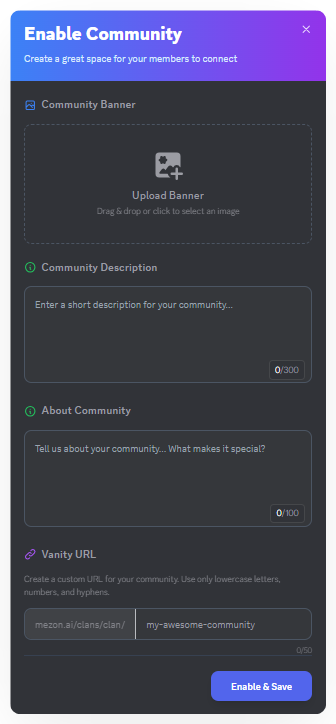
Once activated, you’ll be taken to the configuration page:
- Community Banner: Click Upload Banner to upload an image representing your community.
- Community Description: Enter a brief description (up to 300 characters) introducing your community.
- About the Community (Detailed Introduction): Write a short paragraph (up to 100 characters) highlighting your Clan, its values, and what makes it special.
- Custom URL: Enter a custom name (lowercase letters, numbers, hyphens) to create a memorable URL for your community.
Example: Enter my-awesome-community to have: mezon.ai/clans/clan/my-awesome-community.
Note
Maximum file size for Community Banner: 10 MB
3
Activate & Save
- After filling in all the information, click Enable & Save at the bottom of the page.
Your Clan is now in Community Mode! Everyone on the internet can freely join your Clan.